Artificial identities · Lyfera · 2026-11-24
Why an AI video has no sound
Check the original file for an audio track, separate playback from recorded silence, and trace the first edit or export that loses the sound.

When an AI video plays silently, first establish whether the downloaded file contains an audio track. Then distinguish a missing track from a muted player, a silent recording and audio lost during editing or export. These problems can produce the same first impression, but they call for different corrections. Regenerating a finished picture is an expensive way to discover that the browser was muted.
The movement of a mouth, a striking bell or a visible loudspeaker does not establish that a file contains sound. Nor does the .mp4 extension. MDN's guide to media containers distinguishes the file container from the audio and video formats it can carry. A playable picture can be present while the audio needed for a particular scene is absent.
Check the original file before changing the scene
Save the original download separately from an edited or resized copy. Open it in a player that exposes media or codec information, and look for an audio stream as well as a video stream. If the information is unclear, someone handling the technical delivery can inspect it with a media-analysis tool. The official ffprobe documentation describes reporting the streams inside a file and selecting audio streams specifically. This inspection reads the file; it does not create a soundtrack.
An audio stream in that report establishes that an audio stream is present. It does not establish that speech was generated, that the samples are audible or that the intended player can decode them. An empty audio-stream list in a successful inspection points to a different problem from an audible source file that becomes quiet only after upload. Keep any inspection error separate from a successful report that found no audio.
Before assuming a generation failed, check the documentation and settings for the exact model, mode and output used. A service offering several kinds of video may provide different audio controls for them. An image-to-video mode, a generated preview and an exported edit should not be assumed to have identical capabilities. A request for dialogue in the written brief does not prove that the selected operation includes audio in its output. Avoid relying on an old comparison of model names for that decision.
Separate the player from the recording
If the file has an audio track, start playback deliberately and check the player's mute and volume controls, the device's output selection and the connection to any headphones or speakers. Compare the same saved file in another suitable player. If it is audible there, preserve that observation before altering the media. You have narrowed the problem to a particular playback path rather than demonstrated a missing generation.
MDN documents the video element's mute setting separately from its source media, and explains that browsers restrict autoplay with sound. A silent autoplay preview can therefore be a poor test of what was recorded. The practical check is to use the actual controls and play the exact file, rather than infer its contents from the first preview on a page.
When a track exists but remains inaudible across suitable players, inspect it in an editor and listen to the section where sound is expected. A waveform or level meter can help distinguish a quiet passage from a track carrying no useful signal, but a nearly flat display alone is not a complete diagnosis. Confirm the selected track, channel and listening level. Raising gain cannot recover speech that was never recorded, and a large increase may only expose noise. Do not make a suddenly amplified test the first thing someone hears through headphones.
Find the copy that first loses the sound
Consider an imagined short introduction featuring Lyfera talent Rui Enomoto. The intended release includes a spoken greeting and a brief surrounding sound. Suppose the original download is audible, the editing timeline is audible, and the final export is silent. In that hypothetical case, a new facial performance would address the wrong stage. Compare the export's audio inclusion, selected track, mute state and output format with the working timeline, then inspect the new file itself.
HandBrake's audio-defaults documentation provides a concrete example of how a conversion stage makes its own track-selection decisions: its “None” option adds no audio tracks automatically, while other choices select tracks by language. That is a documented behavior of this converter, not proof that another editor caused the same failure. The broader lesson is to check which tracks a transformation actually retained.
If the original download is already silent, return to the operation that produced it. Establish whether audio was expected and supported before choosing between a documented correction, a separate sound edit or another take. Preserve the original and any failure receipt. A successful-looking picture with an uncertain audio result is something to reconcile, not a reason for repeated paid attempts without a defined target.
Keep the approved voice and the finished picture together
For a recurring artificial character, replacing missing audio is also an editorial decision. Use an approved reading when one exists, and verify the words and delivery in the finished edit. Our guide to correcting a mispronounced name concerns an audible voice saying the wrong sound. Our guide to a local lip-sync error begins once speech and picture are available to compare. Neither is a substitute for establishing whether this file has usable audio at all.
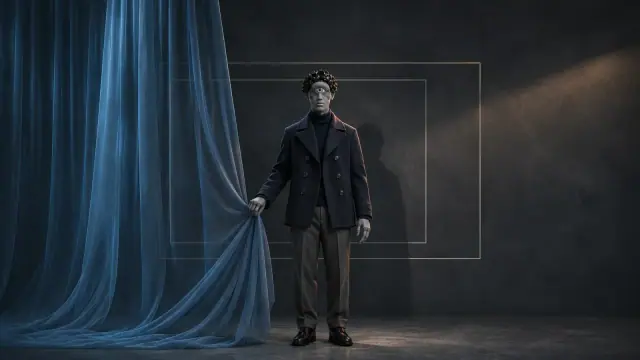
The photographs here are imagined listening environments featuring Rui, not screenshots or audio test results. For a real release, check the saved export from beginning to end, then the uploaded version on the intended device, with deliberate playback and the correct track. If the piece is intentionally silent, judge it as such. If the greeting matters, the final check is that the audience can hear the approved greeting beside the intended picture. Lyfera is not claiming a built-in audio-repair or sound-generation service through this example.