Artificial identities · Lyfera · 2026-11-19
How to remove unwanted subtitles from AI video
Distinguish selectable tracks, playback captions and burned-in text, then judge a video repair by what it preserves across movement.
To remove unwanted subtitles from an AI video, first establish whether the text comes from a selectable subtitle track, the player displaying the clip, or the video pixels themselves. A separate track can be disabled or omitted from a new file. Text burned into the picture needs an image repair, a different crop or a clean source. That repair may reconstruct a plausible surface; it cannot promise to recover exactly what the letters covered.
The distinction matters when a generated character starts speaking and an unwanted line appears across the frame. Changing the caption setting may solve the problem immediately. If the line is part of the picture, that same setting leaves it untouched. Diagnose the layer before spending another generation or repainting a face that was already usable.
Check the file as well as the player
Keep the original export and open a copy in a second player. Disable its subtitle options and any live-caption feature that adds text during playback. Also check whether a separate caption file beside the video is being loaded automatically. If the text appears only in one playback environment, examine that environment before altering the video.
A file inspector can help with the next distinction. FFprobe documents the streams inside a media file, including subtitle streams. Finding one gives you a track to investigate. Finding none does not establish that the visible text is burned in: a player or platform may still be adding its own captions. Inspect a decoded source frame without subtitle rendering and compare it with the playback view.
HandBrake distinguishes selectable subtitles from hard-burned output. With a compatible player, a selectable track can be switched off. A burned subtitle has become part of the image. Even a subtitle stored as bitmap pictures can be a separate track, so the presence of image-based subtitles alone does not settle which case you have.
When the unwanted text is a separate track, make a new file that keeps the intended video and audio streams and omits that subtitle track. A compatible remux can copy the existing video stream without repainting or re-encoding its frames. Reopen the result and check both picture and sound. Preserve any correct caption track you still need in the source archive, ready for a deliberate final caption pass.
If the letters are pixels, inspect what they cover
Begin with the cleanest available source. If the text was added in an editing timeline, return to that timeline and export with the unwanted layer disabled. If it is already present in the generated frames, select a short section that contains its appearance, a change of wording and its disappearance. That section should also include whatever moves behind the letters.
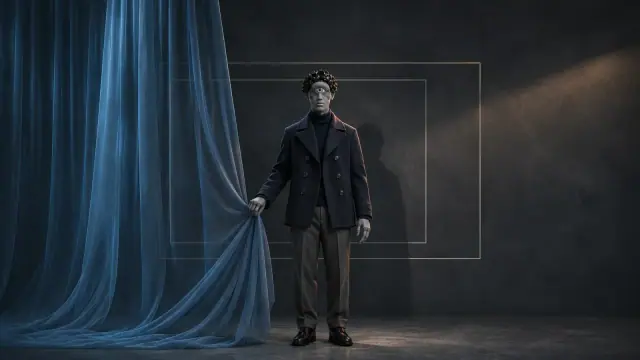
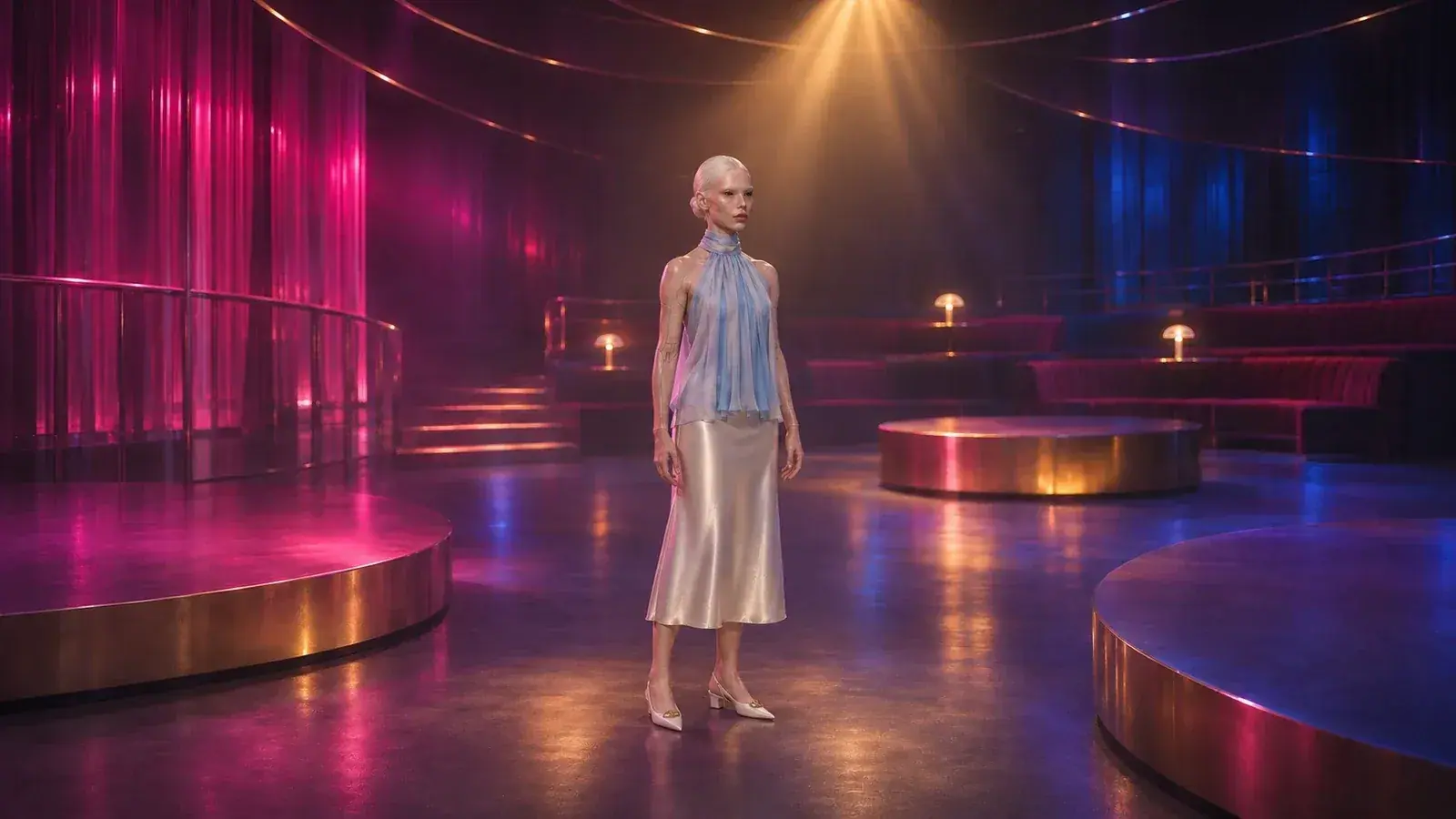
Consider a hypothetical clip based on the accompanying portrait of Ilona Vainio. A caption across an empty part of the venue would cover different information from a caption crossing the face or the neckline. In the closer illustration, the hand, jaw and collar meet within a small area. A repair there has to preserve their separate boundaries as the subject moves. These still images illustrate the decision; they are not before-and-after evidence of a video repair.
A video inpainting tool may offer a mask or a box for the area to repair. The difficult boundary includes outlines, shadows and glows around the letters, not just their centres. The November 2026 research report Hint, Not Hole describes missed strokes and halos surviving incomplete localisation, while overly broad masks can cause clean background to be reconstructed. Its results are qualitative reports from the authors, rather than a guarantee for every clip or removal tool.
Use those failure modes to guide review. Watch for a pale letter edge that survives between frames, a patch that changes brightness, or a fingertip that loses its shape as it crosses the repaired region. Check the transition into and out of the text, then play the whole section at normal speed. A clean paused frame can sit inside a visibly flickering sequence.
Preserve the performance through the final export
A crop can remove a subtitle band when the composition has room for it. Judge the resulting shot: does it still contain the hand gesture, the garment edge and enough space around the head? Covering the band with another graphic makes a different editorial choice and leaves the obscured content hidden. If a repair changes an identifying feature or an important action, returning to a clean source or replacing the shot may be the more useful option.
The Journal's guide to fixing text in AI-generated images addresses a spatial repair in a still. Video adds the need to maintain that repair across movement and cuts. Review each shot boundary separately, then check the final encoded file with its audio and intended captions. Add accurate, accessible captions through a controlled captioning pass after the unwanted text is resolved, keeping a clean picture master for future versions.